Installation Guide
To install the Form Locations for Gravity Forms plugin on your WordPress website, follow these steps:
- Upload the Plugin:
- Log in to your WordPress dashboard.
- Navigate to Plugins > Add New Plugin in the left-hand menu.
- Click the Upload Plugin button at the top of the page.
- Click Choose File, select the plugin’s
.zipfile from your computer, and click Install Now.
- Activate:
- Once the installation is successful, click the Activate Plugin button on the screen.
- Run Initial Scan:
- After activation, you will need to run the initial site scan to locate your existing forms.
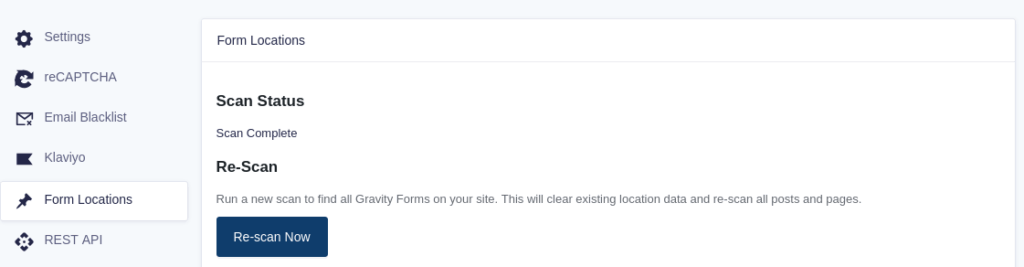
- Navigate to Gravity Forms > Settings > Form Locations to initiate this.
How to Use the Plugin
The plugin is designed to be simple and automated, but here is how to use its main features.
Running the Initial Scan (or Re-scanning)
To find all of the Gravity Forms currently embedded across your site’s posts and pages, you need to run a scan:
- Go to Gravity Forms > Settings > Form Locations in your WordPress dashboard.
- Click the “Re-scan Now” button to start scanning your site. This will run efficiently in the background using Action Scheduler.
(Note: Once the initial scan is complete, you generally will not need to manually scan again, as the plugin automatically tracks real-time updates whenever posts are saved or deleted).
Viewing Form Locations
To see exactly where a specific form is being used on your site:
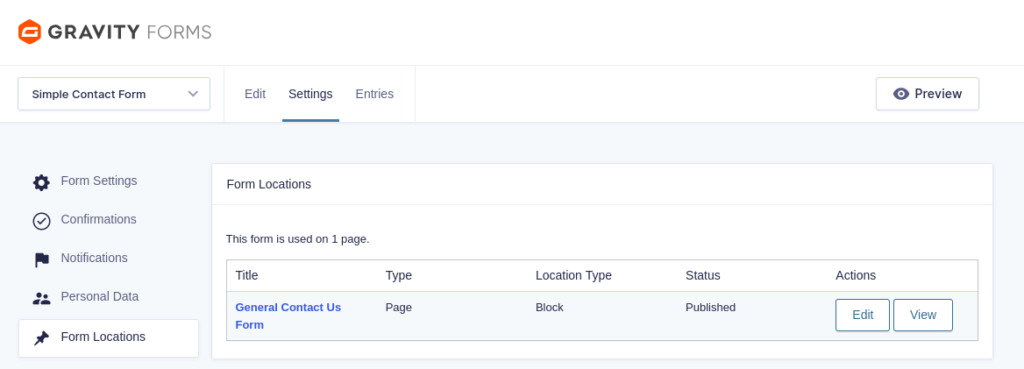
- Navigate to the Gravity Forms list and Edit the specific form you want to check.
- Click on the Form Locations tab within the form’s settings.
- You will be presented with a list of all pages and posts where that specific form is used.